

Are you wanting to be more tech savvy in the digital age? When there’s less and less time to do things, make your computer life easier with these 10 computer tips.
In the ever-evolving world of technology, making the most out of your computer can significantly boost both productivity and enjoyment. Here are 10 computer tips to help you streamline your tech activity.
1. Master keyboard shortcuts
Keyboard shortcuts are a highly efficient way to navigate and manage tasks on your computer, significantly saving time and enhancing productivity.
Windows key + D: A quick way to clear clutter, it minimises all open windows, allowing instant desktop access. Pressing again restores windows to their previous state.
Spacebar: Convenient for scrolling down web pages or documents, without constant mouse clicking.
Shift + Spacebar: This allows you to scroll up through documents and web pages and revisit previously viewed content.
Windows key + Left/Right Arrow: A multitasker’s dream. Snaps the current window to either side of the screen, enabling work on two windows simultaneously in split-screen format, ideal for comparisons or multitasking.
Alt + Tab: This combination allows swift switching between open applications, saving time spent on manual navigation.
Windows key + L: Essential for privacy, this command locks your computer, requiring a password or authentication to unlock. Especially useful in public spaces or workplaces, ensuring work and personal information remain confidential when you step away.
2. YouTube keyboard commands
Navigating YouTube videos becomes incredibly intuitive and efficient with these keyboard commands:
Numbers 0-9: These are shortcuts to specific parts of the video. For instance, pressing ‘0’ takes you to the beginning, while ‘5’ jumps to the halfway point. Each number represents a percentage of the video’s total length, making it easy to skip to the section you want without dragging the play head on screen.
J, K, L keys: Quick control over video playback. ‘J’ rewinds video by 10 seconds, ‘K’ is pause and play toggle, for immediate stopping and resuming of video and ‘L’ fast-forwards by 10 seconds, useful for skipping content you’re not interested in.
3. Utilise Google for phone location
To locate a lost device, simply type “find my phone” into Google’s search bar or use Apple’s iCloud service and select the app while logged into the same account as your phone. This feature helps you track its location, making it easier to recover if misplaced.
4. Update software regularly
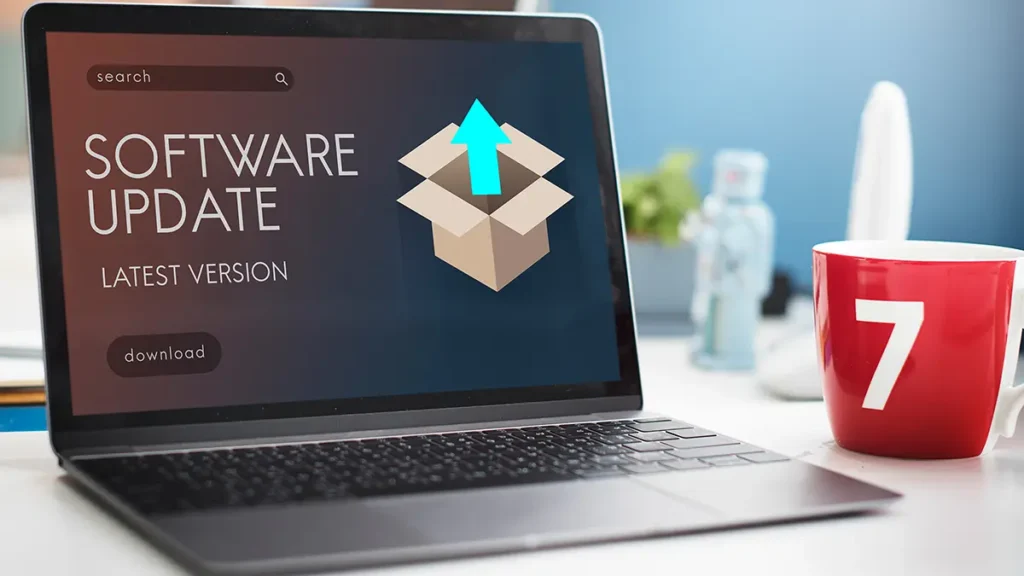
Crucial not only to enhance security by patching vulnerabilities but also improve functionality with new features and bug fixes. Ignoring updates can leave your system exposed to risks and prevent you from enjoying the latest improvements.
5. Backup your data
Frequently back up your data to cloud services or external drives, ensuring safety and recovery in case of data loss.
6. Clear your cache
Boost your browser’s performance and maintain privacy by clearing the cache. Access settings, find ‘privacy’ or ‘history’, select ‘clear browsing data’, choose the desired time range, and confirm. This simple action can significantly speed up browsing and safeguard personal data.
7. Use Ad Blockers and VPNs
Install browser extensions that filter out adverts. A VPN, (Virtual Private Network), encrypts your internet connection, enhancing privacy and security. Set up by choosing a provider and following their installation and connection instructions.
8. Optimise start-up programs
To speed up your computer, disable unnecessary start-up programs. Access Task Manager on Windows or System Preferences on Mac, locate the start-up tab, deselecting programs you don’t need at launch.
9. Learn basic troubleshooting
Learning basic troubleshooting skills such as rebooting, verifying cable connections, and conducting regular antivirus scans can efficiently resolve a variety of common computer problems.
10. Practise good ergonomics
To avoid physical strain, ensure an ergonomic computer setup with a properly adjusted chair, monitor at eye level, and keyboard and mouse positioned for comfortable use.